In April 2011 I reviewed the Ninja from Atomos. If you have a DSLR or video camera with a clean HDMI output the Ninja is still a great option for recording at a higher bit rate than your camera can achieve by using its own internal compression and flash memory. In fact a new Ninja has just been launched at NAB.
There are an increasing number of field recorders on the market. The Atomos Samurai, which can record from an HD-SDI output, started shipping a few months ago, but has been in such demand that it was only recently that we could get our hands on it for a comprehensive review.
Showing posts with label reviews. Show all posts
April 19, 2012
March 14, 2012
Panasonic HPX250 review
The BBC used to publish a list of approved cameras for HD production. It meant that users could buy a camera knowing it would be approved for use on anything they shoot for the BBC (and now pretty much any European public broadcaster as the list has been adopted by the European Broadcasting Union). It has certainly reduced levels of fear, uncertainty and doubt when faced with a major equipment investment and helped sales, especially of cameras at the budget end.
Before the list moved to the EBU, the last addition was the Panasonic AG-HPX250, which is retailing around £3,600 plus VAT. It is a direct rival to the Canon XF300 and XF305 (£4,400 and £5,040 +VAT respectively), and the lowest cost camera on the list. Its form factor makes it particularly suitable for observational documentaries. We have done a side-by-side comparison of the HPX250 and XF305 on our Canon XF Notebook site.
The HPX250 has three 1/3-inch, MOS sensors at full-HD 1920x1080 (2.2 megapixels). The HPX250 is 50Hz/60Hz switchable so you have a choice of 25p, 50i, 30p, 60i and 24p. It records AVC-Intra, DVCPRO HD, DVCPRO50, DVCPRO25 and, should you need it, DV on to P2 cards. This means it can record up to 10-bit 4:2:2 and 100Mbps. And if that is not enough, you have an HD-SDI output for even higher quality recording to a separate field recorder.
The camera’s form factor is nothing new compared to the typical camcorder of the last six years, with a viewfinder (EVF) at the rear and pop-out LCD screen on the side. The handle on the top houses most of the audio controls and the two XLR audio sockets. This camera neatly fits into the Panasonic range. If you are a HVX200 owner looking to upgrade or add to your kit, the HPX250 would feel familiar and be an easy transition.
It weighs 2.5kg (5.5lbs), a little lighter than the 2.7kg Canon XF305, but neither are shoulder mounted, which will mean the usual aching arms and shoulders on prolonged shoots.
Lens check
Most manufacturers have ditched the separate iris control on a little fiddly dial (as seen on Sony's Z1). Iris is where it should be – on the barrel of the lens behind the zoom and focus. The iris has a good positive feel to it and opens to F1.6, but as you zoom in it will ramp down to F3.2 at full telephoto.
The camera has a good 22x optical zoom from 3.9mm-86mm, which is equivalent to a 28-616mm lens on a 35mm DSLR. There is also a 2x, 5x and 10x digital zoom.
The focus ring, however, was a bit of a disappointment, coming in a non-stop infinity ring mode only. I would have expected Panasonic to copy Sony (EX1) and Canon (XF300/305) and offer the option of a focus ring with hard end stops for a more repeatable focus pull. But, what is there is fine with no lag or stickiness.
If I have to be picky, one problem is that Peaking only comes in white. I always prefer to use a red peaking as it makes focusing so much more obvious and a lot easier.

That said, to help with focusing you do get the usual Push Auto button, which switches the camera from manual to auto focus while you press it down. Plus, there is a Focus Assist button that magnifies the centre of the screen to help you check your focus. This feature shouldn’t be confused with the MF ASSIST mode available in the menus, which increases the sensitivity of the focus ring for fine tuning your focus. If all that wasn’t enough, there is also the focus bar that indicates how sharp the image is – the longer the bar the more in focus you are. Nudge the focus ring too far and the bar starts to shorten as you go out of focus.
Gain control
Gain comes in the usual low, medium and high setting from 0dB to 18dB in 3dB increments. If you are in the dark with no possibility to use lights there are super gain options of 24 and 30dB.There is no negative gain, which seems to be pretty standard on most rival cameras, and there is no way to limit the auto gain, which is a bit disappointing.
Shutter framed
The shutter control design and implementation is a bit worrying. The shutter / F.rate dial is used to change the shutter speed and frame rate – this seems very dangerous. As you turn the dial it goes from shutter to synchro scan then Frame rate – and finally lock. Being lockable is useful to prevent accidentally changing anything, but the lock also activates after 12 seconds of inaction. This made changing things annoying and fiddly – hesitate too long and you have to unlock again.
But, I really do think it is a bad idea to have both shutter and frame rate on the same control - these two things need to be kept separate. If you weren’t paying attention or a beginner mixed up their shutter speeds with their frame rates – it could all end in tears.
There are, however, a wide range of frame rates to choose from, useful for off-speed (slow motion or fast motion) effects.
Frame rates
ND filters
The HPX250 has the now almost standard three ND filters, coming in at 1/4ND, 1/16ND, and 1/64ND, controlled by a rotary dial (as pictured below).

Exposure
The HPX250 comes with two sets of zebras that can be set from 50% to 109% in 1% increments, which is nice. You can see Zebra1 and Zebra2 at the same time, just Zebra1 on its own, or you can choose the ‘spot’ option and see the level between Zebra1 and Zebra2. I’m not sure if I’d use the spot function but some may find it handy.
There is also a useful Y get function that you can assign to an assignable button. It will show the brightness at the centre of the screen – making the camera a useful spot meter.
New cameras now have a waveform monitor and vectorscope. I like to use my waveform to check on black and white crushing and the vectorscope can be handy when doing a white balance – to confirm you’ve done it right.
The camera does have a Full Auto Mode – or panic mode as I like to call it. In this mode the camera switches Focus, Iris, gain and white balance to Auto, but not Shutter and audio. This is different from Sony and Canon where the Auto Mode controls Iris, gain, shutter and white balance.
If you are a wedding videographer or do red carpet events, you’re used to flash guns going off around you. Unfortunately, if you are recording video those flashes can cause problems. This is called Flash Banding and you’ll see the brightness at the top of the screen won’t match that at the bottom. The HPX250 does have a very interesting feature called Flash Band Compensation or FBC. This compensates for and minimises the banding when a flash photo is taken in the camera’s vicinity.
White Balance
The HPX250 has the usual preset white balances set to 3200K and 5600K – they have made it easy to toggle between them by pressing the AWB button. You also get the standard A and B manual white balance memories. However, the B memory can be assigned to do an Auto white balance or if you prefer you can assign auto to one of the user buttons.
The camera also has the option to do a black balance by holding down the AWB button for two seconds. I suspect a few operators will do this by accident – but it certainly won’t hurt to do an extra one every now and then.
Audio
There are no big surprises with the audio: two XLR sockets, which can be independently switched to line or mic input with switchable phantom power (+48v). It will do the usual 48KHz at 16 bits – but it is nice to see four channels are available, even if only to use as a back up.
Often the audio volume indicator is a bit small at the bottom on the screen – but you can assign MAG A.LVL to a user button and magnify the meters on the LCD screen – which is a nice touch.
On the Menu
Moving around the menu is simple with the joystick like Operation lever on the side of the camera. Menus across all the manufacturers are fairly similarly laid out these days – which makes finding your way around pretty easy.
Recording media
The HPX250 has two P2 card slots. P2 isn’t the cheapest recording media, but it is very reliable and unlike Compact Flash has “write protect” to stop you accidentally deleting your media.
However, you need to factor the cost of P2 into the purchase price. A 32GB P2 card is around £375 inc VAT while a 64GB card could set you back £550 inc VAT, although there are good deals if you buy a couple of 32GB P2 cards with the camera.
In comparison a 32GB Compact Flash card for Canon's XF305 would be about £95 inc VAT.
Recording times for HD 1080i, 720p
The camera works in relay recording mode – first recording onto one card and then on the next once the first is full. With hot swapping you could keep recording until your battery runs out.
The Pre-Rec option is one of my favourite features of tapeless recording. If you’re worried you’ll miss something then switch on the pre-rec and you will not only get the video after you’ve hit the record button but also the three seconds before too. Everyone will think you are psychic.
For those of you who want to do timelapse there is interval recording – plus one shot (frame recording) for animation.
The modes to be wary of are loop and one clip recording. In loop recording mode the empty space on card A is filled then it moves onto card B. When B is filled – the camera does not stop but goes back to card A again and overwrites what it recorded earlier… then back to overwrite card B – ad infinitum. I can’t think of a use I would have for this. I suppose if you have no idea when an event will happen you could leave the camera in loop mode. But, you would have to ensure you had stopped loop recording once you’ve got what you want – otherwise the camera will head back and overwrite it.
I have had a few trainees who don’t like the fact their video is split into individual clips each time they start and stop recording. So, I guess the ‘one clip recording’ option is for them. In this mode the camera compiles all your video into a single clip.
This feature worries me a lot and I won’t be recommending it to my trainees. Imagine if you do 20 shots in the normal way and one is corrupt. That has happened to me. It is annoying, but at least I still have 19 healthy clips. I assume that if I used the one clip recording option, I would have had one large corrupted file. No, this just sounds like a bad idea.
As well as P2, the camera also uses SD/SDHC cards for recording and loading scene and user files and uploading metadata. This is handy if you have more than one camera and want to swap and synchronise settings. Or maybe your colleagues have sticky fingers and like to change camera settings – this way you can save your settings and load them each time you shoot.
Scene files
If you prefer to tweak the look of your images before the edit, then Panasonic offers six scene files. F1 is for normal everyday shooting; F2 for shooting under fluorescent lighting; F3 for increasing the range of resolution, colour and contrast; F4 increases the contrast in dark areas (increasing black stretch); F5 gives a film look with contrast tweaked; while F6 gives a film look with dynamic range tweaked.
I must admit I prefer to do very little in the camera to change the look of my pictures. I think if possible you should do that sort of thing in post.
Time code
One advantage of the HPX250 is the inclusion of Timecode in/out connectors for synching timecode across cameras. If you regularly work with more than one camera and have to synch them up later in the edit – synching with time code speeds up the process.
OK so when did you last use User Bits? I’m starting to wonder why manufacturers still include them as I don’t know anyone that uses them. But, at least Panasonic has found a good use for them – to record your frame rate choices. But if your NLE doesn’t import that information – then it is rather academic.
Who will buy
If you need 100Mbps in a small, relatively inexpensive camera. This is definitely worth a look.
I was training at a production company last week and they were shooting on a Sony EX3 and a NanoFlash because the broadcaster had stipulated recording at 100Mbps. Now the EX3 is a good camera (if a little old) and the NanoFlash does a good job – but for observational documentaries that was a lot of weight to be carrying around. The XF300/305 was no use – as they record at 50Mbps. In that case, the Panasonic HPX250 seems a no brainer. Not too heavy and no external recorder to worry about - although some broadcasters won't accept its 1/3-inch sensors as HD.
The Flash Band Compensation is a fantastic feature for wedding videographers or anyone covering red carpet events with lots of flash photography.
Before the list moved to the EBU, the last addition was the Panasonic AG-HPX250, which is retailing around £3,600 plus VAT. It is a direct rival to the Canon XF300 and XF305 (£4,400 and £5,040 +VAT respectively), and the lowest cost camera on the list. Its form factor makes it particularly suitable for observational documentaries. We have done a side-by-side comparison of the HPX250 and XF305 on our Canon XF Notebook site.
Panasonic AG-HPX250 Camera
The HPX250 has three 1/3-inch, MOS sensors at full-HD 1920x1080 (2.2 megapixels). The HPX250 is 50Hz/60Hz switchable so you have a choice of 25p, 50i, 30p, 60i and 24p. It records AVC-Intra, DVCPRO HD, DVCPRO50, DVCPRO25 and, should you need it, DV on to P2 cards. This means it can record up to 10-bit 4:2:2 and 100Mbps. And if that is not enough, you have an HD-SDI output for even higher quality recording to a separate field recorder.
The camera’s form factor is nothing new compared to the typical camcorder of the last six years, with a viewfinder (EVF) at the rear and pop-out LCD screen on the side. The handle on the top houses most of the audio controls and the two XLR audio sockets. This camera neatly fits into the Panasonic range. If you are a HVX200 owner looking to upgrade or add to your kit, the HPX250 would feel familiar and be an easy transition.
It weighs 2.5kg (5.5lbs), a little lighter than the 2.7kg Canon XF305, but neither are shoulder mounted, which will mean the usual aching arms and shoulders on prolonged shoots.
Lens check
Most manufacturers have ditched the separate iris control on a little fiddly dial (as seen on Sony's Z1). Iris is where it should be – on the barrel of the lens behind the zoom and focus. The iris has a good positive feel to it and opens to F1.6, but as you zoom in it will ramp down to F3.2 at full telephoto.
Focus, Zoom and Iris control
The camera has a good 22x optical zoom from 3.9mm-86mm, which is equivalent to a 28-616mm lens on a 35mm DSLR. There is also a 2x, 5x and 10x digital zoom.
The focus ring, however, was a bit of a disappointment, coming in a non-stop infinity ring mode only. I would have expected Panasonic to copy Sony (EX1) and Canon (XF300/305) and offer the option of a focus ring with hard end stops for a more repeatable focus pull. But, what is there is fine with no lag or stickiness.
If I have to be picky, one problem is that Peaking only comes in white. I always prefer to use a red peaking as it makes focusing so much more obvious and a lot easier.

That said, to help with focusing you do get the usual Push Auto button, which switches the camera from manual to auto focus while you press it down. Plus, there is a Focus Assist button that magnifies the centre of the screen to help you check your focus. This feature shouldn’t be confused with the MF ASSIST mode available in the menus, which increases the sensitivity of the focus ring for fine tuning your focus. If all that wasn’t enough, there is also the focus bar that indicates how sharp the image is – the longer the bar the more in focus you are. Nudge the focus ring too far and the bar starts to shorten as you go out of focus.
Gain control
Gain comes in the usual low, medium and high setting from 0dB to 18dB in 3dB increments. If you are in the dark with no possibility to use lights there are super gain options of 24 and 30dB.There is no negative gain, which seems to be pretty standard on most rival cameras, and there is no way to limit the auto gain, which is a bit disappointing.
Shutter framed
The shutter control design and implementation is a bit worrying. The shutter / F.rate dial is used to change the shutter speed and frame rate – this seems very dangerous. As you turn the dial it goes from shutter to synchro scan then Frame rate – and finally lock. Being lockable is useful to prevent accidentally changing anything, but the lock also activates after 12 seconds of inaction. This made changing things annoying and fiddly – hesitate too long and you have to unlock again.
Shutter and Frame rate on the same control
But, I really do think it is a bad idea to have both shutter and frame rate on the same control - these two things need to be kept separate. If you weren’t paying attention or a beginner mixed up their shutter speeds with their frame rates – it could all end in tears.
There are, however, a wide range of frame rates to choose from, useful for off-speed (slow motion or fast motion) effects.
Frame rates
50Hz mode | 59.97Hz Mode |
1080p 1/2/4/6/9/12/15/18/20/21/ 22/23/24/25 frames per second 720p 1/2/4/6/9/12/15/18/20/21/ 22/23/24/25/26/27/28/30/ 32/34/37/42/45/48/50 fps | 1080p 1/2/4/6/9/12/15/18/20/21/ 22/24/25/26/27/28/30 frames per second 720p 1/2/4/6/9/12/15/18/20/21/ 22/24/25/26/27/28/30/ 32/34/36/40/44/48/54/60 fps |
ND filters
The HPX250 has the now almost standard three ND filters, coming in at 1/4ND, 1/16ND, and 1/64ND, controlled by a rotary dial (as pictured below).

Exposure
The HPX250 comes with two sets of zebras that can be set from 50% to 109% in 1% increments, which is nice. You can see Zebra1 and Zebra2 at the same time, just Zebra1 on its own, or you can choose the ‘spot’ option and see the level between Zebra1 and Zebra2. I’m not sure if I’d use the spot function but some may find it handy.
There is also a useful Y get function that you can assign to an assignable button. It will show the brightness at the centre of the screen – making the camera a useful spot meter.
New cameras now have a waveform monitor and vectorscope. I like to use my waveform to check on black and white crushing and the vectorscope can be handy when doing a white balance – to confirm you’ve done it right.
The camera does have a Full Auto Mode – or panic mode as I like to call it. In this mode the camera switches Focus, Iris, gain and white balance to Auto, but not Shutter and audio. This is different from Sony and Canon where the Auto Mode controls Iris, gain, shutter and white balance.
Full Auto or Manual
If you are a wedding videographer or do red carpet events, you’re used to flash guns going off around you. Unfortunately, if you are recording video those flashes can cause problems. This is called Flash Banding and you’ll see the brightness at the top of the screen won’t match that at the bottom. The HPX250 does have a very interesting feature called Flash Band Compensation or FBC. This compensates for and minimises the banding when a flash photo is taken in the camera’s vicinity.
White Balance
The HPX250 has the usual preset white balances set to 3200K and 5600K – they have made it easy to toggle between them by pressing the AWB button. You also get the standard A and B manual white balance memories. However, the B memory can be assigned to do an Auto white balance or if you prefer you can assign auto to one of the user buttons.
The camera also has the option to do a black balance by holding down the AWB button for two seconds. I suspect a few operators will do this by accident – but it certainly won’t hurt to do an extra one every now and then.
Audio
There are no big surprises with the audio: two XLR sockets, which can be independently switched to line or mic input with switchable phantom power (+48v). It will do the usual 48KHz at 16 bits – but it is nice to see four channels are available, even if only to use as a back up.
Two XLR sockets on the HPX250
Line and Mic level selection - with 48v Phantom power
Audio input/output selection
Often the audio volume indicator is a bit small at the bottom on the screen – but you can assign MAG A.LVL to a user button and magnify the meters on the LCD screen – which is a nice touch.
Audio levels - loud and clear
Moving around the menu is simple with the joystick like Operation lever on the side of the camera. Menus across all the manufacturers are fairly similarly laid out these days – which makes finding your way around pretty easy.
Easy joystick operation to navigate the menu
Recording media
Two P2 card slots
The HPX250 has two P2 card slots. P2 isn’t the cheapest recording media, but it is very reliable and unlike Compact Flash has “write protect” to stop you accidentally deleting your media.
However, you need to factor the cost of P2 into the purchase price. A 32GB P2 card is around £375 inc VAT while a 64GB card could set you back £550 inc VAT, although there are good deals if you buy a couple of 32GB P2 cards with the camera.
In comparison a 32GB Compact Flash card for Canon's XF305 would be about £95 inc VAT.
Recording times for HD 1080i, 720p
Recording Format | Recording time on 32GB card | Recording time on 64GB card |
AVC-I 100 DVCPRO HD | 32mins | 64mins |
AVC-I 50 | 64mins | 128mins |
Recording times are for HD 1080i and 720p | ||
The camera works in relay recording mode – first recording onto one card and then on the next once the first is full. With hot swapping you could keep recording until your battery runs out.
The Pre-Rec option is one of my favourite features of tapeless recording. If you’re worried you’ll miss something then switch on the pre-rec and you will not only get the video after you’ve hit the record button but also the three seconds before too. Everyone will think you are psychic.
For those of you who want to do timelapse there is interval recording – plus one shot (frame recording) for animation.
The modes to be wary of are loop and one clip recording. In loop recording mode the empty space on card A is filled then it moves onto card B. When B is filled – the camera does not stop but goes back to card A again and overwrites what it recorded earlier… then back to overwrite card B – ad infinitum. I can’t think of a use I would have for this. I suppose if you have no idea when an event will happen you could leave the camera in loop mode. But, you would have to ensure you had stopped loop recording once you’ve got what you want – otherwise the camera will head back and overwrite it.
I have had a few trainees who don’t like the fact their video is split into individual clips each time they start and stop recording. So, I guess the ‘one clip recording’ option is for them. In this mode the camera compiles all your video into a single clip.
This feature worries me a lot and I won’t be recommending it to my trainees. Imagine if you do 20 shots in the normal way and one is corrupt. That has happened to me. It is annoying, but at least I still have 19 healthy clips. I assume that if I used the one clip recording option, I would have had one large corrupted file. No, this just sounds like a bad idea.
As well as P2, the camera also uses SD/SDHC cards for recording and loading scene and user files and uploading metadata. This is handy if you have more than one camera and want to swap and synchronise settings. Or maybe your colleagues have sticky fingers and like to change camera settings – this way you can save your settings and load them each time you shoot.
Scene files
If you prefer to tweak the look of your images before the edit, then Panasonic offers six scene files. F1 is for normal everyday shooting; F2 for shooting under fluorescent lighting; F3 for increasing the range of resolution, colour and contrast; F4 increases the contrast in dark areas (increasing black stretch); F5 gives a film look with contrast tweaked; while F6 gives a film look with dynamic range tweaked.
Scene File options
I must admit I prefer to do very little in the camera to change the look of my pictures. I think if possible you should do that sort of thing in post.
Time code
One advantage of the HPX250 is the inclusion of Timecode in/out connectors for synching timecode across cameras. If you regularly work with more than one camera and have to synch them up later in the edit – synching with time code speeds up the process.
Time code in/out and Genlock
OK so when did you last use User Bits? I’m starting to wonder why manufacturers still include them as I don’t know anyone that uses them. But, at least Panasonic has found a good use for them – to record your frame rate choices. But if your NLE doesn’t import that information – then it is rather academic.
Who will buy
If you need 100Mbps in a small, relatively inexpensive camera. This is definitely worth a look.
I was training at a production company last week and they were shooting on a Sony EX3 and a NanoFlash because the broadcaster had stipulated recording at 100Mbps. Now the EX3 is a good camera (if a little old) and the NanoFlash does a good job – but for observational documentaries that was a lot of weight to be carrying around. The XF300/305 was no use – as they record at 50Mbps. In that case, the Panasonic HPX250 seems a no brainer. Not too heavy and no external recorder to worry about - although some broadcasters won't accept its 1/3-inch sensors as HD.
The Flash Band Compensation is a fantastic feature for wedding videographers or anyone covering red carpet events with lots of flash photography.
The genlock and timecode in/out features are a boon for anyone thinking of working multicam either on location on in a studio through a vision mixer (its main rival, the Canon XF300 doesn't have them, you have to spend extra on an XF305).
The Panasonic HPX250 is an interesting camera and certainly worth shortlisting if your budget is less than £5,000.
[[UPDATE: Panasonic has released 18 new, free, downloadable scene styles for the HPX250]]
The Panasonic HPX250 is an interesting camera and certainly worth shortlisting if your budget is less than £5,000.
[[UPDATE: Panasonic has released 18 new, free, downloadable scene styles for the HPX250]]
By Christina Fox
-------------------------- In response to comments - some setting is currently preventing us from adding a comment below - so we're adding this comment here:
OnThePulse said it doesn't do 1080p, but according to Panasonic (in the HPX250 manual), the variable frame rates it does in 1080p are: 12, 15, 18, 20, 21, 22, 23, 24, 25fps in 50Hz mode, and 12, 15, 18, 20, 21, 22, 23, 24, 25, 26, 27, 28 and 30fps in 60Hz mode.
Jonathan, thank you for your kind remarks. We agree about the price of P2, but given the cost of the camera, it can still make financial sense if you get a bundle deal and manage you media very carefully.
-------------------------- In response to comments - some setting is currently preventing us from adding a comment below - so we're adding this comment here:
OnThePulse said it doesn't do 1080p, but according to Panasonic (in the HPX250 manual), the variable frame rates it does in 1080p are: 12, 15, 18, 20, 21, 22, 23, 24, 25fps in 50Hz mode, and 12, 15, 18, 20, 21, 22, 23, 24, 25, 26, 27, 28 and 30fps in 60Hz mode.
Jonathan, thank you for your kind remarks. We agree about the price of P2, but given the cost of the camera, it can still make financial sense if you get a bundle deal and manage you media very carefully.
December 11, 2011
Review: Blackmagic Design HyperDeck Shuttle recorder
[UPDATE: Matt Grant (@MGcam on Twitter) has won our Blackmagic Design HyperDeck Shuttle competition. Congratulations Matt]
[UPDATE 2: Blackmagic has released new HyperDeck Shuttle 2, which adds ability to record Avid's DNxHD compressed format]
There are now quite a few field recorders available to allow you record higher quality video from your video camera or DSLR. I reviewed the Ninja not long after it was launched and really liked it. The one thing missing was HD-SDI but that has been fixed with the introduction of the Samurai (or the addition of Atomos new Connect connvertors, which includes an HD-SDI to HDMI version). Convergent Designs’ NanoFlash has been around the longest, and is often seen attached to a Sony EX1 or EX3 camera, there are also the AJA KiPro mini, Sound Devices Pix recorders and Fast Forward Video's sideKick, as well as several more expensive systems from the likes of Codex Digital, Cinedeck, and Convergent Designs (the new Gemini 444).
[UPDATE 2: Blackmagic has released new HyperDeck Shuttle 2, which adds ability to record Avid's DNxHD compressed format]
There are now quite a few field recorders available to allow you record higher quality video from your video camera or DSLR. I reviewed the Ninja not long after it was launched and really liked it. The one thing missing was HD-SDI but that has been fixed with the introduction of the Samurai (or the addition of Atomos new Connect connvertors, which includes an HD-SDI to HDMI version). Convergent Designs’ NanoFlash has been around the longest, and is often seen attached to a Sony EX1 or EX3 camera, there are also the AJA KiPro mini, Sound Devices Pix recorders and Fast Forward Video's sideKick, as well as several more expensive systems from the likes of Codex Digital, Cinedeck, and Convergent Designs (the new Gemini 444).
HyperDeck Shuttle with Solid State Drive |
But, if you want the ultimate in quality, then being able to record an uncompressed picture should be the way to get it, and some of the high-end recorders allow that, but there is a cheaper way, which is why I was keen to test out Blackmagic Design’s HyperDeck Shuttle, an uncompressed portable recorder retailing around £250/$345.
First Impressions
When you get it out of the box the HyperDeck Shuttle feels a bit, well, minimalist. If it came in white you’d probably think it was an Apple device. In fact it is black and machined out of a solid block of aircraft-grade aluminium with seven buttons and six sockets.
Record - transport control - DISP - power buttons |
First of all, it doesn’t record in a range of selectable formats. So, there are no menus to dive in to as there is nothing to change. What the Hyperdeck Shuttle does is record 10-bit uncompressed video from your camera’s SDI or HDMI socket, plus eight channels of embedded audio in HDMI or 16 channels over SDI, and just bundles it up in a .mov QuickTime wrapper. It recognises whatever SD or HD format you are using
To give you some idea of file sizes, I recorded a minute of video using my Canon XF305 (at 50Mbps). When I checked on the CompactFlash cards the one minute (MXF file) was 391.7MB.
One minute MXF file = 391.7MB |
The same one minute on the HyperDeck Shuttle was 8.46GB.
One minute uncompressed video file = 8.46GB |
It brought home just what my camera is capable of and how much compression my video is normally subjected to. If you intend to do a lot of post-production work on your video then recording straight to the HyperDeck Shuttle is a sure way of hanging on to all your data. You could always use the video on the CompactFlash for the offline edit, as proxy files or, at a pinch, backup.
But, with each minute taking up over 8Gb, I would only get about 15 minutes on a 128GB drive. So, you’ll have to plan ahead on how to handle the data. You could buy enough SSDs to get through a day or have a data wrangler on site to backup the SSDs as you go. Either way you will also need a large, fast drive to store all this data once you start editing.
The HyperDeck Shuttle does not come with a drive to record video so you must factor this into the cost. The review model I used came with a 2.5-inch (laptop size) 128GB Kingston Solid State Drive (SSD), which retails at around £120 (about $230 in the US), and format it using HFS+.
Kingston 128GB SSD - holds about 15mins of uncompressed video |
Spinning disk drives are not recommended, as they are not capable of writing at the required speeds. In fact, not all SSDs are up to the job. If you go to the Blackmagic FAQ page you’ll find the current list of recommended 3Gbps SATA drives. At the time of writing these were:
1. OCZ 240GB Vertex 3
2. OCZ 480GB Vertex 3
3. Crucial 256GB C300
4. Kingston 64GB SSDNow V+
5. Kingston 128GB SSDNow V+
Plugged In
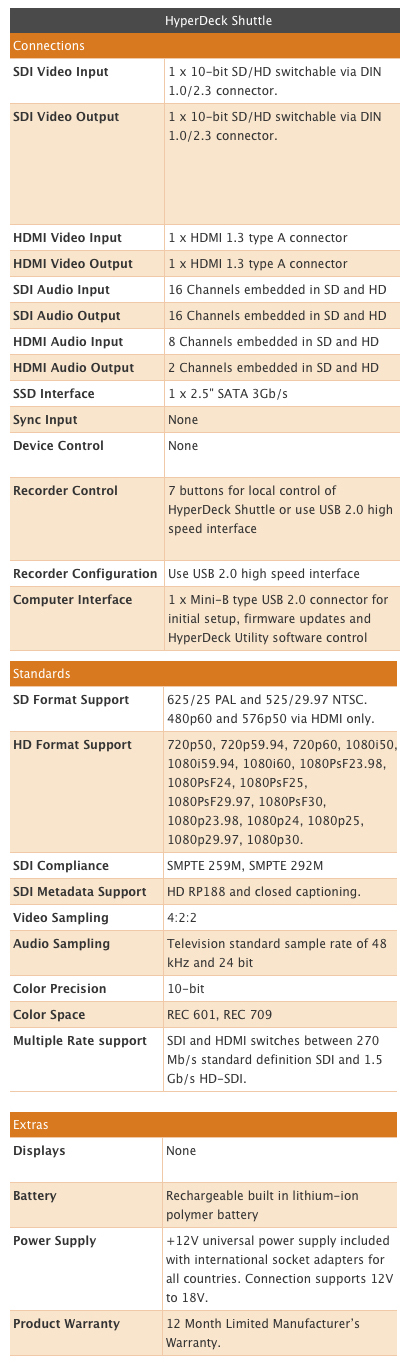
The HyperDeck Shuttle comes with two HDMI sockets and two SDI sockets for video in and out. Whether you feed video in for recording by either HDMI or SDI, you can plug a monitor into either HDMI or SDI out socket. If you are of a nervous disposition you probably will want to plug in a field monitor to check on what is being recorded. However, there will be nothing on screen to confirm it is recording, how much it has recorded and how much disk space is remaining. This would have been useful – although if the SSD LED is lit, that indicates something is happening, and there is another LED to show that you are getting a video signal.
Power, HDMI in and out, SDI in and out and mini USB socket (click on these images to enlarge) |
How are you supposed to know when the SSD needs changing? Well, you need to keep an eye on the stop button. Once it starts flashing you have three minutes recording time left. Once the disk is full it obviously stops recording, the red recording light goes out and the green SSD indicator light stops flashing.
There is also a mini USB socket on the Shuttle. I wrongly assumed I could plug the Shuttle into my Mac and use it as a dock to review the video on the removable drive. In fact you will need to buy a separate dock for the SSD.
The USB is there to allow remote control of the device and to enable software upgrades. What I didn’t realise when I started the review was that this was something I needed to do.
When it first arrived I plugged in the HyperDeck Shuttle using an HDMI cable into my Canon XF305. But, the HyperDeck Shuttle was having none of it. It did not recognise the camera and/or video signal. It just would not record. After a call to Blackmagic they suggested the unit needed a software upgrade.
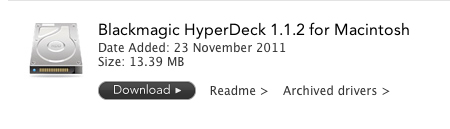
The first thing to do is go to the Blackmagic Site and you’ll see a link to download the Blackmagic Hyperdeck Utility.
Download for the utility to check for and install driver updates |
I couldn’t see a download for a Windows PC, only for a Mac. The utility was only 13.4MB so didn’t take long to download and install.
The next thing to do was plug in the HyperDeck Shuttle into my Mac using a USB cable (not supplied) and then open the utility. The first couple of times they wouldn’t talk to each other but on the third attempt the utility suggested I needed to update the drivers. I clicked 'Yes' and the utility did the rest.
I unplugged the USB and tried recording with the HDMI – success. Everything now worked perfectly.
Now my next problem was how to test the SDI feed? My camera has the standard BNC connector and I have BNC to BNC cables in the office. But, the HyperDeck Shuttle has a mini coax SDI connector. I know I don’t have the correct cable – damn it. I realise manufacturers want to keep their prices low. But, I do expect them to include important cables. Anyway, fast forward and a few weeks later I have the correct cable and importantly a dock to plug the SSD into my Mac.
BNC to mini coax SDI connector |
You will also need a dock to transfer video from the SSD to your Mac |
After doing a Google search I see Blackmagic sell a cable pack for around £60/$90.
HyperDeck Shuttle plugged into my Canon XF305's HD-SDI socket |
The final socket is for the 12v power. The unit can be run from the mains (adapter supplied) or from a built-in rechargeable lithium-ion polymer battery, which should last around one hour in record mode and 1.5 in playback.
Blackmagic warns (on the FAQ page) that: “Some drives consume twice as much power as other similar capacity ones from other brands.” So, you would definitely want to check how hungry the SSDs are that you intend to use. There is a four-LED battery indicator on the unit – once it goes out there are only four minutes of battery life remaining.
Button Up
There are seven buttons on the HyperDeck Shuttle. There are the usual media transport buttons: play, stop, rewind and forward, plus a record button and power on/off. The seventh button, DISP (display), doesn’t work at the moment, but it is promised that it will in a future software update.
Record - transport control - DISP - power button |
Get Mounted
In the Blackmagic blurb it says you can: “Take your HyperDeck Shuttle into the field, on set, to live events, or even on your extreme sport shoots.” If it does leave the building you will have to find a way to mount it onto your camera or tripod.
Out of the box it has no fixing plate or screw mounts. However, Blackmagic did announce a €69 mounting plate for the Hyperdeck Shuttle that should be available now. It provides multiple 1/4-inch and 3/8-inch mounting points. You could also use Velcro…
Mounting plate with lots of fixing points |
In The Box
As I mentioned at the start, the unit is fairly minimalist. That could also be said for what was in the box – the HyperDeck Shuttle and power supply.
You will need:
- Solid State Drives – big ones or lots of them.
- A dock for the drives to transfer the footage to your editing/storage drive
- An HDMI cable from camera to Shuttle [OR]
- ... a BNC to mini coax SDI connector
- A USB cable to connect the Shuttle to your computer for software updates
- A mounting plate to attach it to your camera or articulating arm.
In Post
Once you've captured your video, it is straightforward to import the files into an editing system, such as Final Cut Pro, which can work with uncompressed material. Lower-power systems may have problems playing back uncompressed in real time, and unless you have the storage and bandwidth to cope with it, you may be limited to one or two streams of uncompressed.
I have a MacBook Pro 2.2Ghz Intel core i7 with 4GB of RAM - which struggled to play the uncompressed video in Final Cut Pro 7. The only thing to run smoothly was the spinning beach ball. However, this may be because my Mac has a spinning disk drive and not a SSD. If you want to work with uncompressed video, it is best to have a high-speed RAID storage array.
In theory, I could have edited direct from the SSD I had recorded onto. But, it was connected to my Mac via USB which caused a trickle of digits rather than the flood I needed. If only I had a dock with a Thunderbolt connection
However, you can transcode the files to any format you want to work with in the edit, such as ProRes 444 (if you want to maintain the highest quality), ProRes 422, or Avid DNxHD. Or do an offline edit at a lower bitrate and then conform the uncompressed in a suitably powerful finishing or grading system at the end. The pictures will be as good as the camera can produce.
I have a MacBook Pro 2.2Ghz Intel core i7 with 4GB of RAM - which struggled to play the uncompressed video in Final Cut Pro 7. The only thing to run smoothly was the spinning beach ball. However, this may be because my Mac has a spinning disk drive and not a SSD. If you want to work with uncompressed video, it is best to have a high-speed RAID storage array.
In theory, I could have edited direct from the SSD I had recorded onto. But, it was connected to my Mac via USB which caused a trickle of digits rather than the flood I needed. If only I had a dock with a Thunderbolt connection
However, you can transcode the files to any format you want to work with in the edit, such as ProRes 444 (if you want to maintain the highest quality), ProRes 422, or Avid DNxHD. Or do an offline edit at a lower bitrate and then conform the uncompressed in a suitably powerful finishing or grading system at the end. The pictures will be as good as the camera can produce.
Should you buy?
Broadcasters here in the UK have decided that 50Mbs recording is the minimum data to qualify as High Definition. Now this isn’t a problem for some cameras, but there are a few models that need a little extra help (such as the Sony EX1 and EX3). The Hyperdeck Shuttle will certainly keep the broadcasters happy.
However, this is a relatively big unit to strap to your camera (16cmx11cmx3cm) and weighs 660g with the SSD, but without the mounting plate. It is probably a little too large for fast moving situations, but would be great for location drama and studio set ups.
If you expect to do a lot of green screen shooting, compositing and colour correction then working uncompressed should ensure all the data latitude you’ll need with 10-bit colour precision and 4:2:2 video sampling.
It would be particularly well suited to a higher-end camcorder, such as Sony's PMW-F3, which records 35Mbps XDCAM internally, or the new Canon EOS C300, which records 50Mbps MXF files internally (like the XF305) – although the C300 only produces an 8-bit image it does output a 10-bit signal through the HD-SDI port so should work with the Shuttle with no problems. You could use the recorder with a camera that can record 12-bit video, but you'll only get 10-bits (you'd need a Codex, Cinedeck, Sony SRW-R1 or S.two recorder for 12-bit or above) and 4:2:2 (the Gemini 444, as the name suggests can do 10-bit 4:4:4 – as can all the 12-bit recorders).
The main reasons for not using a Shuttle would be its lack of a built-in monitor (if you don't have one or space to fit it), the fact that it doesn't currently tell you battery and memory status through the camera or other display, and, most crucially, if you'll be shooting and editing lots of material. Uncompressed video takes up such a large amount of space that this is almost certainly not the recorder you want if you are shooting an observational documentary, or editing on a low-to-mid-range system. SSDs will get cheaper (typically following Moore's law of half the price/twice the capacity every two years or so), bandwidth more available, and processors more powerful, so compression will become less necessary.
But given its price, even if you have to buy all the extras mentioned above, this is still a good value recorder, and will be really useful for many types of production, particularly commercials, promos and fashion shoots.
Christina Fox
Christina Fox
August 26, 2011
Final Cut Pro X training reviewed
When Final Cut Pro X launched there was a lot of incorrect information about what it could and could not do. One experienced editor reviewer said FCP X couldn’t do overwrite edits and that you could only change a clip's speed by 25% and 50%. Both statements are untrue.
To really find out what it can do and get some hands-on experience it is useful to get some training. A classroom-based course is a good idea if you have the time and money, or you could, of course, read Apple’s online help – but like most manuals it is arm-gnawingly boring.
A more appealing alternative is to download some video training. A few months before launch, Apple previewed FCP X with a select few individuals. Two of this privileged group were FCP trainers Steve Martin of Ripple Training (www.rippletraining.com) and Larry Jordan (www.larryjordan.biz - pictured below speaking at the recent FCPUG London SuperMeet). Both had a busy time ahead of the FCP X launch and both delivered videos for download soon after. A few people I know bought the training before they bought the software to see whether FCP X was worth buying.
What you get
Steve Martin’s training comes as a 1.34GB zipped file. Once opened you get 38 QuickTime videos and two pdfs. One pdf tells you about Apple accreditation while the other shows how to download media files to practice on and follow Steve as he takes you through FCP X. The media is a further big download (1.24GB) and includes a group of American Civil War re-enactors shooting at one another and being interviewed.
I’d recommend downloading the media because it will enable you to follow those sections on fixing audio, synching audio and colour correction. Unless of course you already have video with mains hum, from a DSLR with dodgy white balance! The training videos add up to around five hours of training for $39.99.
Larry Jordan’s training comes as a 1.36GB zip file. It opened out, on my Mac, to one pdf (a contents page) and 79 QuickTime videos in 12 chapter folders. His website states there are 88 videos, but that might include the missing ones from chapter two, which Larry explained: “…is devoted to trouble-shooting. And, as of now, we don't know what troubles we need to shoot. So, there are no movies in this chapter yet.”
Larry expects you to provide your own footage, but that’s probably not a problem for most people. In the training he demonstrates using some GVs of a garden, a kitchen and an interview. If you have something similar you’ll easily be able to follow along. The videos amount to around 11 hours of training for $99.99.
If you are new to editing you’ll find all you need to ingest, edit and share (export) your project. Neither trainer assumes you have previous knowledge. That said, if you are upgrading from iMovie or are an experienced FCP 7 user you’ll be shown the similarities (many keystrokes have not changed) and the differences.
If you’re impatient you’ll probably prefer Steve’s approach, by lesson nine (about one hour in) you’ll be doing your first rough cut of the media provided. Larry, however, takes a bit longer to get to that stage. He spends the first three hours doing a good overview of the software and, most importantly, how to manage the media.
FCP X is a database of media events rather than a series of projects (as in FCP 7). It took me a while to get my head around how it stores and organises media – but this is important and I’d recommend you don’t skim through it. Occasionally I did wonder if I was ever going to edit anything, but with hindsight I think it is time well spent. There is no point jumping straight in trying to edit if you don’t understand how FCP X organises your video.
Both trainers take you through the basics of editing, trimming, transitions, effects and audio. FCP X does not do multi-cam editing (at the time of writing) but it is expected sometime soon. But it can sync one or more video clips with one or more audio clips by analysing the audio. Users of the PluralEyes plug-in will be used to this. And it is explained clearly by both trainers.
It is difficult to recommend one set of training over the other. Both are very good. If you don’t have any video to practice with you should probably consider Steve Martin’s training as you get the full package and it is cheaper than Larry’s. You could easily go through it in a single day (if you turn your phone off). Although I suspect you’d be a bit googly eyed by the end of the day if you did. One small criticism is that Steve used a normal sized pointer, which I occasionally lost sight of as it whizzed across the screen. There were quite a few times I had to rewind the video to check exactly where he had clicked. But, that is the advantage of training like this, you can watch it as many times as you like. In comparison Larry had enlarged his pointer, which radiated a red circle when he clicked on anything, so was a lot easier to follow with tired eyes.
I have previously bought training webinars from Larry Jordan’s site and attended several seminars he gave at BVE a few years ago. I like his relaxed style and methodical approach. His training is more expensive but still great value for money. You get plenty of in-depth instruction.
Larry is a classic trainer – he outlines each chapter with an overview of what you’ll learn, demonstrates it, then concludes with a summary of what you should have learnt. Once I was about half way through I watched most of the short overview videos in fast forward leaving more time to concentrate on the training sections. I think you’d be crazy to try and get though all of Larry’s training in a day. It will take about 11 hours just to watch it and you’ll need time to practice on your own material after each section to consolidate what you have learnt.
If you’re not interested in editing, but do shoot stock footage, FCP X could easily become your new library as every shot can have keywords attached and even different sections of the same shot can be given different searchable keywords. In which case I’d recommend you buy Larry’s training as it goes into this aspect of organising the media in more detail.
Is this way of learning for you?
It looks like we have time to get up to speed with the software. There are quite a few things missing that professional editors have come to expect. Over the next few months updates will start to appear, and more plug-ins will emerge. So, for many users, there is no need to rush into a decision.
If you are easily distracted you probably should book yourself onto a classroom-based course. When I was totally new to editing I found classroom training worked best because you can ask the instructor questions. Most good training organisations will also offer telephone support for around 30 days afterwards. With luck some Skillset money (in the UK) may be available to reduce the costs.
If you have editing experience and need a conversion course, video training may be ideal. It will take you through the differences and show all the features in a logical and straightforward manner. In a group you can be slowed down by the technophobes, with this training you set your own pace. You can fast forward through anything that isn’t relevant to you now, but it will always be there when you need to apply a feature you rarely use.
A classroom-based course also requires time off to attend, while a video course allows you to choose the time and the place. It is very flexible, allowing you to do an hour a day if you’re busy or motor through all of it over a quiet weekend. But, to really make this training work for you – you have to set aside time to concentrate on watching, learning and most important of all practicing.
To really find out what it can do and get some hands-on experience it is useful to get some training. A classroom-based course is a good idea if you have the time and money, or you could, of course, read Apple’s online help – but like most manuals it is arm-gnawingly boring.
A more appealing alternative is to download some video training. A few months before launch, Apple previewed FCP X with a select few individuals. Two of this privileged group were FCP trainers Steve Martin of Ripple Training (www.rippletraining.com) and Larry Jordan (www.larryjordan.biz - pictured below speaking at the recent FCPUG London SuperMeet). Both had a busy time ahead of the FCP X launch and both delivered videos for download soon after. A few people I know bought the training before they bought the software to see whether FCP X was worth buying.
What you get
Steve Martin’s training comes as a 1.34GB zipped file. Once opened you get 38 QuickTime videos and two pdfs. One pdf tells you about Apple accreditation while the other shows how to download media files to practice on and follow Steve as he takes you through FCP X. The media is a further big download (1.24GB) and includes a group of American Civil War re-enactors shooting at one another and being interviewed.
I’d recommend downloading the media because it will enable you to follow those sections on fixing audio, synching audio and colour correction. Unless of course you already have video with mains hum, from a DSLR with dodgy white balance! The training videos add up to around five hours of training for $39.99.
Larry Jordan’s training comes as a 1.36GB zip file. It opened out, on my Mac, to one pdf (a contents page) and 79 QuickTime videos in 12 chapter folders. His website states there are 88 videos, but that might include the missing ones from chapter two, which Larry explained: “…is devoted to trouble-shooting. And, as of now, we don't know what troubles we need to shoot. So, there are no movies in this chapter yet.”
Larry expects you to provide your own footage, but that’s probably not a problem for most people. In the training he demonstrates using some GVs of a garden, a kitchen and an interview. If you have something similar you’ll easily be able to follow along. The videos amount to around 11 hours of training for $99.99.
If you are new to editing you’ll find all you need to ingest, edit and share (export) your project. Neither trainer assumes you have previous knowledge. That said, if you are upgrading from iMovie or are an experienced FCP 7 user you’ll be shown the similarities (many keystrokes have not changed) and the differences.
If you’re impatient you’ll probably prefer Steve’s approach, by lesson nine (about one hour in) you’ll be doing your first rough cut of the media provided. Larry, however, takes a bit longer to get to that stage. He spends the first three hours doing a good overview of the software and, most importantly, how to manage the media.
Database or editor, or both?
FCP X is a database of media events rather than a series of projects (as in FCP 7). It took me a while to get my head around how it stores and organises media – but this is important and I’d recommend you don’t skim through it. Occasionally I did wonder if I was ever going to edit anything, but with hindsight I think it is time well spent. There is no point jumping straight in trying to edit if you don’t understand how FCP X organises your video.
Both trainers take you through the basics of editing, trimming, transitions, effects and audio. FCP X does not do multi-cam editing (at the time of writing) but it is expected sometime soon. But it can sync one or more video clips with one or more audio clips by analysing the audio. Users of the PluralEyes plug-in will be used to this. And it is explained clearly by both trainers.
Which training?
It is difficult to recommend one set of training over the other. Both are very good. If you don’t have any video to practice with you should probably consider Steve Martin’s training as you get the full package and it is cheaper than Larry’s. You could easily go through it in a single day (if you turn your phone off). Although I suspect you’d be a bit googly eyed by the end of the day if you did. One small criticism is that Steve used a normal sized pointer, which I occasionally lost sight of as it whizzed across the screen. There were quite a few times I had to rewind the video to check exactly where he had clicked. But, that is the advantage of training like this, you can watch it as many times as you like. In comparison Larry had enlarged his pointer, which radiated a red circle when he clicked on anything, so was a lot easier to follow with tired eyes.
I have previously bought training webinars from Larry Jordan’s site and attended several seminars he gave at BVE a few years ago. I like his relaxed style and methodical approach. His training is more expensive but still great value for money. You get plenty of in-depth instruction.
Larry is a classic trainer – he outlines each chapter with an overview of what you’ll learn, demonstrates it, then concludes with a summary of what you should have learnt. Once I was about half way through I watched most of the short overview videos in fast forward leaving more time to concentrate on the training sections. I think you’d be crazy to try and get though all of Larry’s training in a day. It will take about 11 hours just to watch it and you’ll need time to practice on your own material after each section to consolidate what you have learnt.
If you’re not interested in editing, but do shoot stock footage, FCP X could easily become your new library as every shot can have keywords attached and even different sections of the same shot can be given different searchable keywords. In which case I’d recommend you buy Larry’s training as it goes into this aspect of organising the media in more detail.
Is this way of learning for you?
It looks like we have time to get up to speed with the software. There are quite a few things missing that professional editors have come to expect. Over the next few months updates will start to appear, and more plug-ins will emerge. So, for many users, there is no need to rush into a decision.
If you are easily distracted you probably should book yourself onto a classroom-based course. When I was totally new to editing I found classroom training worked best because you can ask the instructor questions. Most good training organisations will also offer telephone support for around 30 days afterwards. With luck some Skillset money (in the UK) may be available to reduce the costs.
If you have editing experience and need a conversion course, video training may be ideal. It will take you through the differences and show all the features in a logical and straightforward manner. In a group you can be slowed down by the technophobes, with this training you set your own pace. You can fast forward through anything that isn’t relevant to you now, but it will always be there when you need to apply a feature you rarely use.
A classroom-based course also requires time off to attend, while a video course allows you to choose the time and the place. It is very flexible, allowing you to do an hour a day if you’re busy or motor through all of it over a quiet weekend. But, to really make this training work for you – you have to set aside time to concentrate on watching, learning and most important of all practicing.
By Christina Fox
This review first appeared in the Autumn 2011 issue of Zerb, the magazine of the Guild of Television Cameramen.
April 22, 2011
Atomos Ninja Review
The Ninja, by Hong Kong/Australian company Atomos, is one of a growing group of on-camera recorders. These devices enable you to bypass the camera’s compression and record at a higher bitrate on those cameras that have non-compressed HDMI outputs (in the Ninja's case) or HD-SDI. [UPDATE: Atomos now has HD-SDI to HDMI and HDMI to HD-SDI Connect convertors that make it easy to add HD-SDI inputs to Ninja] [UPDATE 2: The Ninja 2 has been launched - better display, HDMI output, compatible with new AtomOS 3.0 firmware]
After a couple of delays due to software problems, the Ninja is now shipping and will be joined eventually by the Samurai, which will record using HD-SDI and have a larger, higher-resolution screen.
The Ninja comes in a handy hard carry case. The kit includes two hot-swappable hard drive caddies, two batteries with a dual charger and a docking station for the drive with FireWire 800, USB 2.0 and 3.0 and eSata connections.
PROBLEM 1
All of these field recorders have three problems they are trying to solve.
First of all: image quality. For example the new Canon XF305 records 50Mbps 4:2:2 while Sony's EX1 and EX3 record 35Mbps 4:2:0 onto their solid-state memory cards. But, they are more than capable of exporting pictures of higher quality via their HD-SDI and/or HDMI sockets (the EX3 doesn't have HDMI, but the newer EX1R does). Field recorders allow you to tap into those higher quality images.
The Ninja records 10-bit ProRes HQ at 220Mbps, ProRes 422 at 150Mbps or ProRes LT at 100Mbps in hardware, and Apple has checked that it is "bit-for-bit accurate" (and gave its approval) according to Atomos CEO, Jeromy Young.
Most DSLR cameras record in H.264, a great codec for a video project ready for upload to the web, but not much fun to edit with. A separate recorder using a more edit friendly codec should make your editor happy and mean less time hanging around waiting for video to render or be transcoded.
PROBLEM 2
Storage capacity. A 32Gb Compact Flash card will hold around 40mins of video at 50Mbps. Most professional cameras can hold two cards, but if you need to shoot a lot of video you will have to keep swapping cards throughout the day. Plus, you typically only have one copy, which can be worrying, especially if you are new to tapeless recording.
With the Ninja you record to a 2.5-inch 9.5mm-high laptop-sized hard drive – disk or solid state. These are not included in the kit but they are readily available. A 500GB drive will give you around five hours of recording time in ProResHQ, 7.5 hours in ProRes422 and 11 hours in ProResLT. Now you can shoot all day and/or have two copies, just in case.
Atomos recommend fast (7200rpm) hard disks rather than 5400rpm ones. If the disk is knocked during recording you may see the Skippy icon – a kangaroo in a yellow diamond – to let you know there is a problem.
If your shoot involves a fair bit of rough and tumble, you should consider buying the more expensive solid-state drives (SSD). At the moment Atomos only recommends Intel SSDs, but new drives come out all the time so it is a good idea to check its checked and approved list.
The drives fit inside the supplied master caddy for protection. If you buy extra drives you way want to buy an extra pack of five caddies for around £25.
![]() |
| screen grab showing 3.99Gb files |
PROBLEM 3
Power management: Having 11 hours of recording time is no use if the batteries can’t keep up. The Ninja has a dual battery system, using common Sony DV batteries. The two NP-F570 batteries in the kit offer around 4.5 hours of power. But, these are hot swappable, so when one depletes, it will switch to the second, and the first can be replaced. So, if you intend doing a long continuous shoot you shouldn’t have any problems. I have some spare Sony NP-F970 batteries, which still had plenty of juice to spare after being on for ten hours.
![]() |
| Ninja dual battery system |
At the moment the Ninja only shows battery voltage remaining – not time remaining. This will be upgraded in a forthcoming firmware upgrade.
GETTING ATTACHED
The Ninja with both batteries and drive weighs in at 700g. It has standard 1/4-inch mounts on the top and base of the unit. You may want to buy a variety of 1/4-inch screw-to-cold shoe connectors – especially if they have a ball and socket joint to easily position the Ninja on the camera. I used a small articulating arm to mount the Ninja to my Canon XF305. Which allows you to position the unit exactly where you want it.
You’ll also need an HDMI cable to connect the Ninja to the camera (it's not included in the package). There really is no need to spend a huge amount on expensive gold cables. If the digits go in and come out of the cable you’re fine. That said cheap cables may be OK round the back of the TV, but, might not survive the rough and tumble of being on the road. If the cable falls out during recording you will get the Skippy icon warning. If you are of a nervous disposition you might want to splash out on a locking HDMI cable.
The Ninja comes with a touch sensitive screen/monitor – so it could be used by a director as a video assist or perhaps by the sound recordist to check for a boom in shot.
DSLR users may find the Ninja monitor helpful when doing very low angle shots – when a typical DSLR screen is almost impossible to see unless you lie down on the ground.
![]() |
| Battery info screen |
GETTING ATTACHED
The Ninja with both batteries and drive weighs in at 700g. It has standard 1/4-inch mounts on the top and base of the unit. You may want to buy a variety of 1/4-inch screw-to-cold shoe connectors – especially if they have a ball and socket joint to easily position the Ninja on the camera. I used a small articulating arm to mount the Ninja to my Canon XF305. Which allows you to position the unit exactly where you want it.
| An articulating arm to help position the Ninja |
You’ll also need an HDMI cable to connect the Ninja to the camera (it's not included in the package). There really is no need to spend a huge amount on expensive gold cables. If the digits go in and come out of the cable you’re fine. That said cheap cables may be OK round the back of the TV, but, might not survive the rough and tumble of being on the road. If the cable falls out during recording you will get the Skippy icon warning. If you are of a nervous disposition you might want to splash out on a locking HDMI cable.
The Ninja comes with a touch sensitive screen/monitor – so it could be used by a director as a video assist or perhaps by the sound recordist to check for a boom in shot.
DSLR users may find the Ninja monitor helpful when doing very low angle shots – when a typical DSLR screen is almost impossible to see unless you lie down on the ground.
![]() |
| Ninja with Canon EOS7D |
![]() |
| The Hague CamFrame |
The monitor is there just for a confidence check that you are getting an image and composition is OK. It is not something I would use to help me with focus. But, if they add peaking in a future firmware upgrade DSLR users will find it more useful.
At the moment playback on the monitor is very blocky and stutters. But, Atomos already has that on its to-do list in a future firmware upgrade.
USER INTERFACE
The Ninja interface is easy to master. So, if you don’t like reading manuals you’ll be OK. That said the manual is well written, with plenty of photos to guide you through the set up process.
![]() |
| Ninja Main screen |
All the controls are via the touch screen monitor. When you switch on, four round buttons appear on screen - REC (record), PLAY, MON (monitor) and MENU.
Along the top of the screen the Ninja indicates whether there is No Input and once you plug into your camera what resolution and frame/field rate it is receiving.
Next to that it tells you which ProRes codec is chosen for recording. To change it just tap on the screen and it will cycle through the options. In the top righthand side of the screen you can see which battery is being used. If you tap on this you can find out how much battery voltage each battery has left.
In the bottom righthand side of the screen you get an indication of recording time. Tap on this and you’ll get information on the make and model of the drive, its size and an option to format it. Formating will prepare the disk for recording the first time it is used – but it will also delete everything on the disk too.
Next to that it tells you which ProRes codec is chosen for recording. To change it just tap on the screen and it will cycle through the options. In the top righthand side of the screen you can see which battery is being used. If you tap on this you can find out how much battery voltage each battery has left.
In the bottom righthand side of the screen you get an indication of recording time. Tap on this and you’ll get information on the make and model of the drive, its size and an option to format it. Formating will prepare the disk for recording the first time it is used – but it will also delete everything on the disk too.
![]() |
| Drive info screen |
I tested the Ninja with several cameras. Using it with the Canon XF305 and XF105 was very simple. Both cameras have a cold shoe mount and a 1/4-inch screw mount – so you can use either way to mount the Ninja. The shortest HDMI cable I had was 2m – which was too long, half that length would have been fine.
DSLR
Atomos will have to disappoint Canon HD DSLR users who were hoping to be able to record perfect uncompressed video via their HDMI ports. The video should still be uncompressed (so long as you don't also record in camera at the same time on some models), but it won't be perfect, as it seems that Canon has helpfully included a white square or a red (recording) dot on a corner of the output, which will be noticeable if you try to use it as full HD.
![]() |
| Canon EOS 7D HDMI output with red dot in the corner of the picture |
Atomos has asked Canon about this, but it seems that the spoiler may be deliberate to maintain the distinction within Canon between the photographic and video divisions.
![]() |
| Canon EOS 7D HDMI output with white "zoom tool" box in the corner of the picture |
Atomos hadn't detected it when they tested a Canon 7D initially as they shot some footage in a studio with a white background. It was only during beta testing that users spotted it, and further testing revealed the white square on the 7D and the red spot on other models.
![]() |
| Panasonic TM700 HDMI output with 'helpful' info on screen. |
However, some DSLRs apparently have HDMI output that is pristine (the Sony Alpha models and Panasonic's GH2 have been reported as working, although we don't have them so can't check). The Ninja also works perfectly with any video cameras they've tested it with, such as the Panasonic AF101 and Sony's F3.
WELL CONNECTED
It has LANC input/output for control (as well as the 4.3-inch touch screen). For audio, it has a mini-jack stereo input, or can record up to six channels of digital audio via HDMI (if the camera supports it), and a headphone jack.
![]() |
| Ninja connections - HDMI, LANC and audio |
Atomos are committed to upgrading the firmware on a regular basis. So, features will be improved and added in the coming months.
If you press on the Ninja's menu button and then the Ninja Info button you can check which firmware version is currently running on your unit. The Ninja we recieved for review was on version 1.02. On the firmware download page they were up to version 1.04 so I thought I'd have a go.The first thing to do is download the zip file from the download page.
Then go to the instruction page and follow the instructions precisely.
The two important things to remember are to format the drive, using the Ninja, before you start and attach fresh batteries to the Ninja so that you don't lose power during the upgrade.
Once the drive was formatted I placed it in the master caddy and copied the firmware file over, which took a few seconds.
Then I placed the drive in the Ninja and switched it on. There were coloured bands flashing at the top and bottom of the screen for about and minute (to prove it was doing something) and then it switched itself off.
When I switched back on and checked the firmware was the new version 1.04. All very simple and exactly as outlined on the Atomos website.
EXPORT TO TIMELINE
Once you’ve finished recording, you place the drive in the master caddy into the docking station, which can be powered via the mains or by the FireWire connection.
Menu screen
|
Then go to the instruction page and follow the instructions precisely.
The two important things to remember are to format the drive, using the Ninja, before you start and attach fresh batteries to the Ninja so that you don't lose power during the upgrade.
Once the drive was formatted I placed it in the master caddy and copied the firmware file over, which took a few seconds.
![]() |
| copy the firmware file to the formatted drive |
Then I placed the drive in the Ninja and switched it on. There were coloured bands flashing at the top and bottom of the screen for about and minute (to prove it was doing something) and then it switched itself off.
![]() |
| coloured bands flash during the upgrade |
| Version 1.04 successfully upgraded |
When I switched back on and checked the firmware was the new version 1.04. All very simple and exactly as outlined on the Atomos website.
EXPORT TO TIMELINE
Once you’ve finished recording, you place the drive in the master caddy into the docking station, which can be powered via the mains or by the FireWire connection.
![]() |
| Ninja Docking station |
![]() |
| Firewire and USB 2.0 and 3.0 on docking station |
If time is short you can edit straight off the drive. In fact if a whole shoot fits on one drive it could be the editing drive and archive all in one…at least in the short term.
But, us nervous types will be backing up all that data. This is all very simple just connect the Ninja drive and drag and drop the ProRes files onto the drive you usually edit from and away you go.
ATOMOS NINJA - PROS:
- Good value: It costs €795, £695 or $995
- Well built and should be robust, especially with solid-state drive
- ProRes is wonderful to edit (not just for Final Cut Pro users, as other non-linear editors can use it too, even on Windows with a plug-in) – you can even plug in and edit from the drive
- Higher quality video, which might not be easily evident when you just compare the two side by side, but will be once you do anything to the video, especially for something like colour correction, where having the 10-bit 4:2:2 images will allow you do much more subtle colour grading
- Small – it makes the AJA Ki Pro Mini look like the Ki Pro Maxi
- Easy to use interface
ATOMOS NINJA - CONS:
- Uses HDMI, which isn't usually a locking connection
- No HDMI pass through (so you can't plug it in to a better monitor)
- No HD-SDI connection (which is coming in the Samurai)
- Low-resolution monitor (480x270 – compared to 5-inch and 800x400 on the Samurai)
- Limited playback capability – although this will be improved in future, it's a much lower frame rate than normal (not helped by the low resolution)
- No XLR audio inputs (unlike some of its, admittedly more expensive competitors)
IN CONCLUSION
The Ninja is a well built and easy to use device. It has evolved since we first saw it at IBC2010 and Atomos has obviously listened to feedback from potential customers. If you have a Pro camera with HD-SDI you may want to wait for the Samurai. But if your camera has HDMI output this is a cost effective way to back up your video on the fly at a higher quality than your removable flash media.
If you are a DSLR owner you need to check whether your camera will work with the Ninja… or hope Canon relents and issues a firmware upgrade to remove unnecessary on-screen icons.
So, is it worth buying? Certainly, if you have something like a Panasonic AF100/AF101 (although it will only output 8-bit video), any of the Sony 35Mbps XDCAM EX range (including the PWM-F3), or the little Panasonic HCK10 point-of-view camera, all of which have been approved for HD use by the BBC, but only when they are recording to an external recorder at 50Mbps or above. It is currently the least expensive such recorder on the market, and it works well – although there are still some things to iron out.
In the medium term: There will soon be a lot more recorders for you to choose from. The newly announced Blackmagic Design HyperDeck Shuttle (see our review of the Shuttle) will only cost $345 and will record uncompressed video. If you want the best for less, this is it – however, big caveat: uncompressed images are huge. If you are recording for any length of time, you'll need lots of big, expensive, SSDs. It is a great option for certain types of work where you want the maximum quality and don't need long recording times, but if you want a compressed system, to save space and allow you to edit the pictures as quickly as possible, ProRes is a great choice.
Being able to do real-time ProRes compression in the recorder is where a lot of the extra cost of the Ninja goes. The real choice for many then will be between the Ninja and the Samurai (which could ship sometime over the Summer or maybe in the early Autumn). At £929, €1,095 or $1,495, the Samurai is still very good value (about 50% less than the admittedly excellent AJA Ki Pro Mini, with its XLR inputs, both SDI and HDMI, and Compact Flash card recording).
If you have an HDMI camera, you should certainly shortlist the Ninja. If your camera only has SDI, then the Samurai would be your value choice. If you need to do both, then look to: AJA; Fast Forward Video's $2,495/£1,695 sideKick HD recorder/monitor which also records ProRes to SSDs; or the upcoming sub-$3,000 Sound Devices PIX 240 recorder, which can also record using the Avid DNxHD video format (there will also be a PIX 220 that is HDMI only and expected to be under $2,000). And if you want even higher quality recording, then the more expensive Gemini 4:4:4 (under $6,000) from Convergent Designs will be the one to watch. However, except for the Ninja, the Ki Pro Mini, and Convergent Designs' industry-standard 8-bit nanoFlash, none of those are shipping yet.
[UPDATE: Other reviews are creeping out. Here's one by LA filmmaker, James Boyd.]
[[UPDATE: Atomos has introduced new Samurai Blade with a sharper monitor and upgraded operating system (AtomOS5) – it has also cut the price of both the Samurai and Ninja-2]]
By Christina Fox
Subscribe to:
Posts (Atom)